
Getting started
Everything you need to successfully get started with Jumis Pro – from registration and system setup to your first login.

Getting started steps
1. Technical requirements compliance
2. Registration
3. Installing the application
4. Regional settings
5. Adding additional users
Company information in Configuration
The most essential settings for system operation are consolidated in the configuration. Here, you can specify company information used in printouts, as well as settings applied across various system modules.
Configuration is accessible from the system ribbon at the top of the screen under the Configuration tab, or from the main form by selecting System Settings > Configuration.
For a detailed description of configuration, see: User Manual > Preparation and Configuration > System Settings.
System users, roles, and permissions
Each Jumis user logs into the system with their own username and password. When using a version of Jumis installed on a local network, the username can be anything. Upon the first login, both the username and password are admin, but these must be changed immediately after logging in. It is not recommended to use a password that is the same as the username. When using the Jumis Pro cloud service, the username must be an email address, as this ensures uniqueness not only within one company but across all cloud service users. Roles and permissions can be assigned to each user. The system administrator has the most extensive system rights, while other users can be granted permissions to work with specific parts of the system as needed. Furthermore, different levels of access can be set for specific areas: read-only (the user can view documents and reports but cannot edit them), create new and edit only their own documents (the user cannot edit documents created by other employees), and full read and edit access (the user can perform all necessary actions in that specific part of the system).
User roles are composed of specific groups of permissions required for a particular job function. Please note that when combining multiple roles, the permissions do not aggregate; instead, the most restrictive permissions apply. For example, if a user is assigned both the Administrator role and the Warehouse Worker role, the user will only be able to operate with the permissions of a warehouse worker.
For more details, see: User Manual > Preparation and Configuration > Security > What are roles and permissions.
Populating the partner list
When starting work in the system, it is advisable to enter information about your business partners in advance. You can do this via the ribbon menu at the top of the screen under the Configuration tab, or by selecting Partners, Currencies in the main form.
If you have previously maintained records in another system, you can simply import your partner list from an MS Excel file.
For more details on entering the partner list, see: User Manual > Partners > How to enter or modify partner information.
To speed up data entry and prevent errors, you can retrieve partner information from the internet. By entering partial information, such as the name or registration number, and clicking the relevant button in the form, the system will search the firmas.lv or Lursoft databases. The selected information can then be automatically added to the partner card.
Each company is entitled to a specific number of free reports per month. If you require a larger volume, there is a fee, and you should contact firmas.lv or Lursoft accordingly.
For more details, see: User Manual > Partners > Quick Entry for Partner Cards.
Refining the chart of accounts
Financial accounting is based on the company's chart of accounts. The Jumis solution includes a standard chart of accounts that users can modify and adapt to their specific needs.
The chart of accounts in the Jumis solution is structured as a tree, allowing you to freely add new accounts and sub-accounts. From a system perspective, there are no limits on the number of accounts or the depth of the hierarchy. However, you should aim to structure the chart of accounts to ensure it remains as practical as possible for future operations.
For example, you should not create a separate account for every business partner, as the system allows you to easily find information using a combination of the account and the partner.
For more details, see: User Manual > Accounting > Chart of Accounts.
Auto-numbering
To ensure the system automatically suggests numbering when creating various documents, you can configure specific conditions by defining uniqueness criteria, number length, format, and other parameters.
Auto-numbering settings can be configured by selecting System Settings > Auto-numbering and invoice numbering in the main form, or by selecting Configuration > Numbering from the ribbon menu.
For more details, see: User Manual > Preparation and Configuration > Auto-numbering and Invoice Numbering.
Formatting documents and reports
The Jumis solution offers extensive options for preparing documents to meet your company's specific requirements. You can go beyond simply entering company details by adding your company logo or using custom-tailored document templates.
Further details: User Manual > Preparation for work and configuration > Form preparation.
The Jumis website section “Document processing, waybills” contains several documents that provide detailed descriptions of how to customize the system for specific needs. For example, the “Waybill templates” document describes how to prepare company-specific waybills.
Entering financial balances
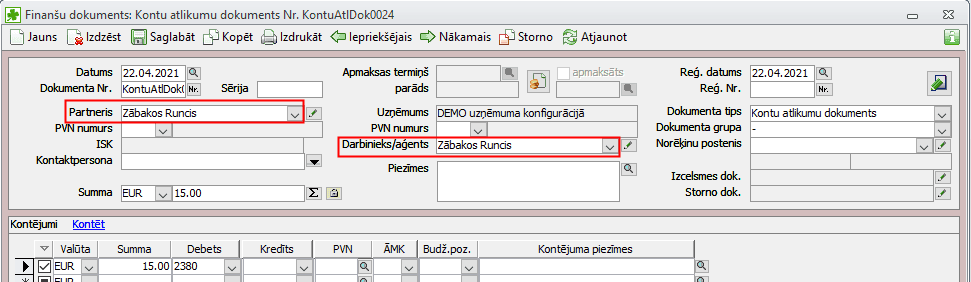
When starting work in the Jumis system, you must enter your opening balances. In the Finance module, balances are entered by creating a new financial document > account balances.
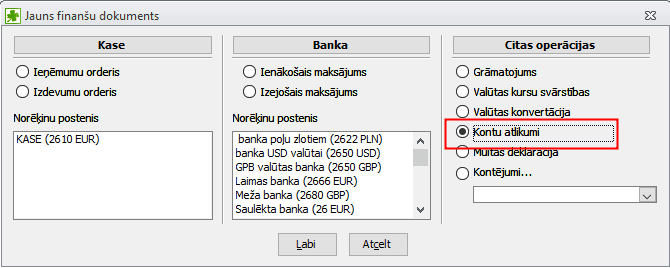
Balance entry procedure.
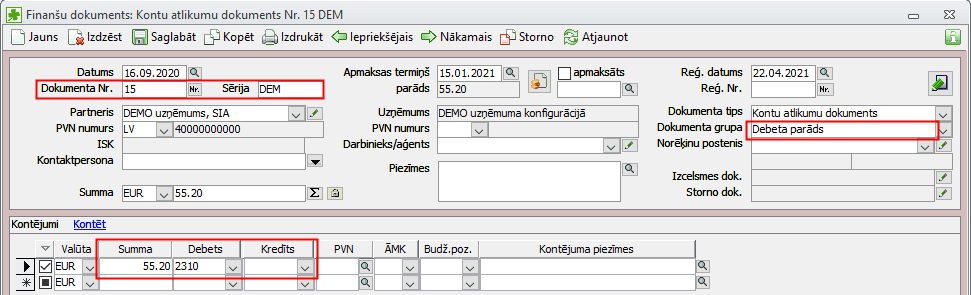
For accounts used to track settlements with partners, create separate account balance documents for each partner. If you wish to view a list of unpaid invoices, you may enter a separate account balance document for each invoice, specifying the invoice number, the actual date of the document, the payment deadline, and the document group > corresponding debt.
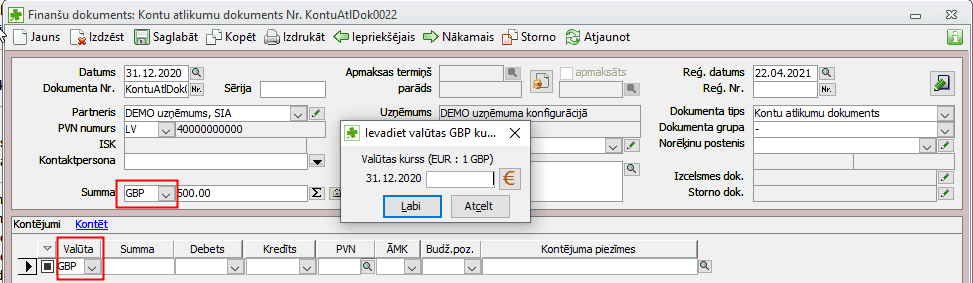
Balances in foreign currencies must be created as separate account balance documents in the respective currency. When entering a document in a foreign currency, you must specify the exchange rate used for accounting purposes on the date of entry. The currency list can be updated with the necessary entries. Description
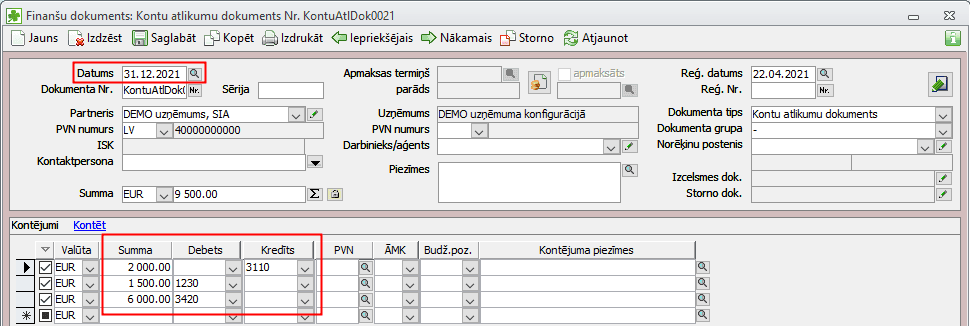
For balances that do not require breakdown by partner or currency, a single consolidated balance document can be created, with balances entered as of the last day of the previous month.
If there are balances for advance payment recipients and future advance reports will be processed in the system for these individuals, specify the advance recipient in the “employee/agent” field when creating the balance document.
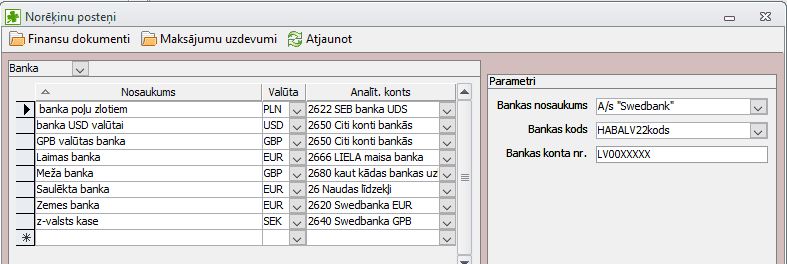
Payment items must be created for cash accounting
Payment items are created by navigating to Finance > Bank or Finance > Cash. When filling out a bank payment item, specify the bank name and account in the “parameters” section to enable the creation of future payment orders.
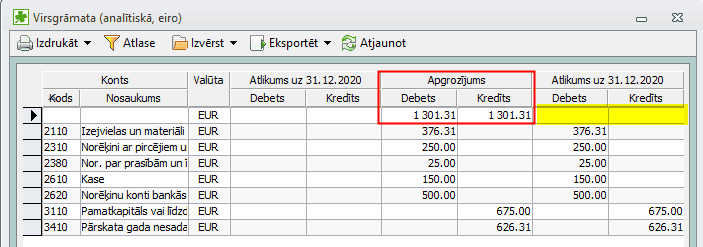
Verifying entered balances
The simplest method is to open the general ledger for the date on which the balances are being entered. The “from” and “to” dates should be set to the balance entry date. Description
A general ledger will be generated, containing all entered balances. Provided that all balances have been entered correctly, no balance will appear in the first empty row. If a balance does appear, verify that the account balances are accurate and that all entries have been made.
To enter opening balances for inventory, create a new warehouse document > balance.
Getting started with the inventory section
The inventory section of Jumis allows you to perform tasks related to product accounting and sales.
Before you begin, you should create a list of product types. Product types allow you to group information in various reports later on. You can also organize the product type list in a tree structure, with types and sub-types. In this case, when filtering information for reports, you will be able to specify whether to select only a specific product type or all of its sub-types.
For a detailed description of how to enter product types, see: User Manual > Inventory Management > Products > Product Types.
In Jumis, you can create a price catalog that specifies the prices to be used when generating sales documents. The price catalog should only include sales prices, as the system will retrieve purchase prices from your procurement documents.
For instructions on creating price types, see: User Manual > Inventory Management > Price Catalog.
Before you begin working with the inventory section, it is recommended to populate your product cards. For instructions on creating product cards, see: User Manual > Inventory Management > Products > How to enter a new product.
To expedite system implementation if you have previously used another inventory management system, you may import product cards from an MS Excel file.